Is A Used Mac Mini M4 Worth Buying? 2026 Developer Checklist
Apple lists the Mac mini M4 with 16GB unified memory and 256GB SSD in its entry configuration, while higher configurations can reach 32GB memory and 2TB storage. That makes configuration mistakes expensive: a used Mac mini M4 is worth buying only when ownership is cleared, the serial number matches the advertised configuration, hardware and ports pass inspection, and the expected usage period is long enough to absorb the risk. (Apple’s Mac mini technical specifications)
Best choice: buy used for a long-term fixed development machine when every check passes. Choose a new Mac when warranty coverage and predictable support matter more than the lowest purchase price. Choose a rented Mac environment when the project is short, testing must start quickly, or several macOS machines may be needed.
This guide is for first-time buyers of used Apple Silicon Macs, developers building iOS projects, and small technical teams comparing second-hand hardware with a new Mac or on-demand access.
Ownership before hardware
The most dangerous failure happens before any performance test.
A buyer can receive a clean-looking Mac mini, see the welcome screen, and still discover after payment that the device is linked to the previous owner’s Apple Account. A factory reset alone does not prove that the previous owner completed the ownership transfer. The seller must sign out, disable Find My, remove Activation Lock, and allow the buyer to activate the Mac with a different Apple Account.
Apple explains that turning off Find My or signing out of the Apple Account removes Activation Lock from a Mac. Its erase process also signs the owner out of Apple services and turns off Find My and Activation Lock. See Apple’s Activation Lock removal instructions and Mac factory reset procedure.
How can a buyer confirm that a used Mac is no longer activation-locked?
Use this sequence while the seller is present:
- Ask the seller to open System Settings.
- Ask the seller to select their Apple Account name.
- Open the Find My settings.
- Turn off Find My Mac and enter the Apple Account password if requested.
- Sign out of the Apple Account.
- Run Erase All Content and Settings.
- Wait for the Mac to restart.
- Connect it to Wi-Fi or Ethernet.
- Begin setup with the buyer’s account, or stop at the setup screen after confirming that activation proceeds normally.
A welcome screen is not enough. The important proof is that the Mac reaches the activation stage without requesting the former owner’s credentials.
Do not accept these explanations as substitutes for the process:
- “The Mac has already been reset.”
- “The account will disappear after you log in.”
- “The seller can remove it remotely later.”
- “The serial number is clean, so Activation Lock cannot be present.”
- “The seller forgot the password but will fix it after payment.”
If the seller refuses to complete the erase and activation check before payment, the transaction has failed its first acceptance condition.
Identity and configuration mismatch
The second risk is buying a different configuration from the one advertised.
A Mac mini M4 can look identical across several memory and storage options. Exterior condition cannot confirm whether the unit has 16GB, 24GB, or 32GB of unified memory. It also cannot confirm whether the internal SSD is 256GB, 512GB, 1TB, or 2TB. Apple’s official technical specifications list these configurable options, so the buyer should verify the exact machine rather than infer it from a seller photograph.
What should be checked before buying a used Mac mini M4?
The minimum identity check uses four sources:
- About This Mac
- System Information
- The serial number printed on the chassis
- Apple’s coverage and model lookup
Apple states that the serial number can be found in About This Mac, System Information, the product packaging, or through the Apple Account device list. It also explains that the serial number can be entered on Apple’s coverage website to identify the model. See Apple’s serial number and model identification guide.
On the Mac, open:
Apple menu > System Settings > General > About
Record:
Chip
Memory
Serial number
macOS version
Coverage
Then open System Information and inspect:
Hardware Overview
Memory
Graphics/Displays
Network
USB
Thunderbolt/USB4
A Terminal check can provide a second serial-number record:
ioreg -l | grep IOPlatformSerialNumber
Example output:
"IOPlatformSerialNumber" = "C02XXXXXXXXX"
The result does not need to be published publicly. It needs to match the chassis, system report, seller’s invoice, and Apple’s model information.
The configuration should be rejected or renegotiated when:
- The seller advertises M4 Pro but System Information shows M4.
- The advertised memory differs from About This Mac.
- The storage capacity differs from System Information.
- The serial number on the chassis does not match macOS.
- The invoice belongs to another device.
- The model lookup returns an unexpected product family.
- The seller refuses to provide the serial number before the meeting.
A serial-number match is necessary. It is not sufficient. A stolen or account-locked device can still have a valid serial number.
Diagnostics versus real hardware inspection
Apple Diagnostics is useful, but it is not a complete quality certificate.
Apple describes the tool as a way to help identify a hardware component that may be at fault. It displays reference codes when a problem is detected. That makes it valuable for screening, but a clean result does not prove that every port, storage workload, display connection, thermal condition, or intermittent fault is healthy. See Apple’s Apple Diagnostics instructions.
Apple Diagnostics procedure
For an Apple Silicon Mac:
- Shut down the Mac.
- Press and hold the power button.
- Release it when the startup options screen appears.
- Press and hold Command-D.
- Run the available diagnostic.
- Photograph or record the result and any reference code.
Apple documents the same startup-options path for Apple Silicon Macs. From the startup options screen, Command-D opens Apple Diagnostics.
A diagnostic code should be treated as a stop signal until an authorized repair assessment explains the cause and cost. The same applies when:
- The Mac cannot reach startup options.
- The Mac repeatedly restarts.
- The diagnostic refuses to run.
- The display goes blank during testing.
- The power button behaves inconsistently.
- The system freezes before the test completes.
A clean diagnostic result should be followed by live testing:
- Cold boot.
- Normal restart.
- Shutdown and power-on.
- Sleep and wake.
- Several minutes of idle operation.
- External display connection.
- Ethernet connection.
- USB-C device connection.
- Bluetooth pairing.
- A real development command.
The buyer should also inspect the enclosure. Look for dents near the ports, bent connectors, loose feet, signs of liquid exposure, damaged power cable insulation, and unusual fan or electrical noise. The compact enclosure makes port damage especially important because a single damaged connector can affect an entire workflow.
Ports and network paths
A Mac mini intended for development is not judged only by whether it boots.
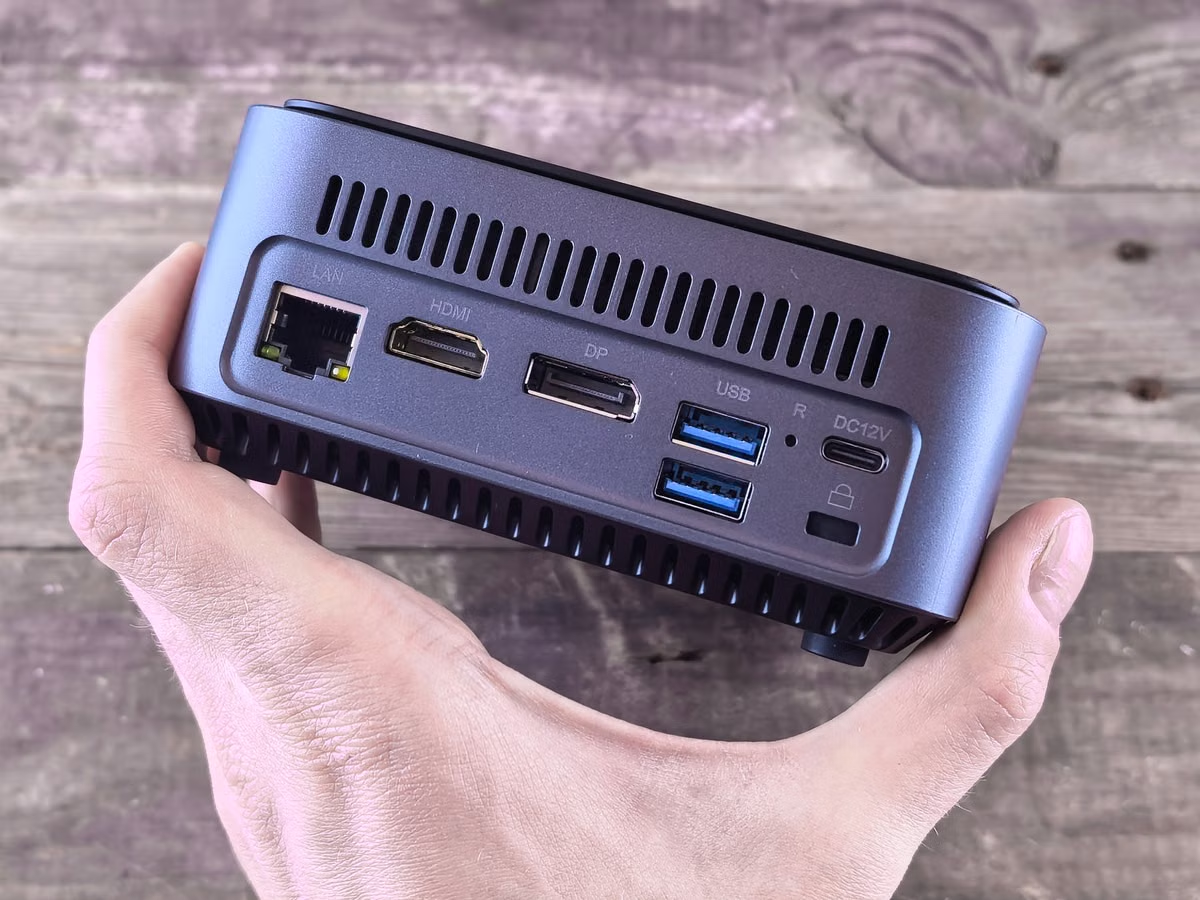
The M4 model includes front USB-C ports, a headphone jack, HDMI, three rear Thunderbolt 4 ports, and Gigabit Ethernet that can be configured for faster Ethernet. Apple also lists Wi-Fi 6E and Bluetooth 5.3 for the Mac mini line. M4 Pro uses Thunderbolt 5 rather than Thunderbolt 4, so the buyer must not combine specifications from the two models.
The practical test should match the intended workflow.
For an iOS developer:
- Connect the planned display.
- Test the exact USB-C or Thunderbolt dock.
- Connect an iPhone or other test device.
- Confirm that Xcode can detect the device.
- Run a small build.
- Test simulator startup.
- Confirm that the network connection remains stable during a build.
For a remote development host:
- Test Ethernet rather than relying only on Wi-Fi.
- Restart the Mac and confirm that it returns to the expected login state.
- Confirm that the machine can be reached after reboot.
- Test the planned remote access method.
- Check whether the display or input arrangement creates a login problem.
- Confirm that the host can be recovered without physical access.
For automation work:
- Test the required command-line tools.
- Run scheduled tasks.
- Confirm that the Mac does not sleep unexpectedly.
- Check external storage behavior.
- Test the restart and recovery procedure.
- Verify that credentials and keychain prompts do not block unattended tasks.
The most common hidden cost is not a broken port. It is an incompatible workflow. A buyer may need a dock, cable, adapter, display, storage device, or network configuration that was not included in the listing.
Workload fit beyond benchmark numbers
A used Mac mini M4 can be correctly identified, activation-ready, and free of diagnostic codes while still being the wrong machine for the intended workload.
The decisive test is the buyer’s own project.
A short validation should include:
git clone <test-repository>
cd <test-repository>
xcodebuild -scheme <scheme-name> -configuration Debug build
Example output:
** BUILD SUCCEEDED **
The repository should contain the same type of dependencies used in production. A blank sample project is too forgiving. A real test should include package resolution, native dependencies, signing behavior, simulator startup, and the normal build directory.
For local AI experiments, test the actual model runtime, model size, storage path, and memory pressure. Do not assume that a Mac that can launch a small model will remain comfortable with larger models, multiple services, or a development environment running at the same time.
For automation, run the complete task chain:
./setup.sh
./run-task.sh
./verify-output.sh
Record:
- Whether dependencies install correctly.
- Whether the process completes without manual input.
- Whether memory pressure appears.
- Whether storage fills during the task.
- Whether network access is required.
- Whether a restart breaks the environment.
The workload should be separated into three categories:
Daily load: editor, browser, terminal, local services, and ordinary builds.
Sustained load: repeated builds, containers, simulators, background workers, or long-running automation.
Peak load: occasional large builds, local AI experiments, data processing, or multiple simultaneous environments.
A configuration that passes daily load may fail sustained or peak load. For that reason, the buyer should not treat a short benchmark as proof of long-term suitability.
Acceptance decision matrix
Use this matrix during the inspection. It separates a technical pass from a negotiation point and from a reason to leave the transaction.
| Checkpoint | Pass condition | Negotiation condition | Stop condition |
|---|---|---|---|
| Ownership | Seller signs out, disables Find My, erases the Mac, and activation proceeds | Seller needs extra time but completes the process before payment | Former account remains required or seller refuses the test |
| Identity | Serial number matches the chassis, system report, and Apple records | Packaging or invoice is missing but all device records match | Serial numbers conflict or model identity is unclear |
| Memory and storage | System values match the listing and intended workload | Configuration is lower but the buyer knowingly accepts it | Seller misrepresented the configuration |
| Diagnostics | Apple Diagnostics completes without a reference code | Test is unavailable because of a temporary setup issue, then is repeated | Error code, repeated restart, or refused test |
| Ports and network | Required display, USB-C, Thunderbolt, HDMI, Ethernet, Wi-Fi, and Bluetooth paths work | Unneeded port has cosmetic damage | A required connection fails |
| Workload | Real project build or automation task completes | Minor setup work is needed and is understood | Required project cannot build or run reliably |
| Support status | Coverage and repair history are understood | Coverage is limited but risk is priced in | Repair history or coverage status is misleading |
Decision branches
The following conditions provide a clear buy, negotiate, or walk-away result.
Choose the used Mac mini M4 when all of these are true:
- Ownership is transferred in person.
- Activation succeeds without the seller’s account.
- Serial number and configuration match the listing.
- Apple Diagnostics completes without a concerning result.
- Every required port and network path works.
- The buyer’s own development workload passes.
- The expected holding period is long enough to justify repair and resale risk.
- The buyer can tolerate downtime if a fault appears later.
Return to a new Mac when any of these conditions apply:
- The machine will support a business-critical build pipeline.
- Warranty or predictable service has higher value than the lowest purchase price.
- The buyer cannot inspect the device before payment.
- The configuration is difficult to replace if it fails.
- The purchase will be made for several developers with different workloads.
- The seller cannot provide a clear ownership history.
Return to a rented Mac environment when any of these conditions apply:
- The macOS requirement lasts only for a project phase.
- The team needs several environments at different times.
- The project requires rapid scaling.
- Hardware downtime would delay delivery.
- The buyer has no display, keyboard, network adapter, or spare machine for troubleshooting.
- The team needs a remote build host rather than a local desktop.
- The workload is still being evaluated and the required configuration is uncertain.
For a more direct cost framework, compare the buyer’s expected ownership period, accessories, repair reserve, and downtime with the available Mac mini rental pricing options. A rental is not automatically cheaper for permanent heavy use. It becomes more attractive when the alternative is buying hardware for a short project, maintaining several machines, or accepting an unplanned outage.
Practical handover sequence
A disciplined handover can be completed in this order:
- Before meeting: request the serial number, exact chip, memory, storage, purchase record, and current coverage status.
- At the start: photograph the enclosure, ports, power cable, and serial number.
- Before payment: open About This Mac and System Information.
- Cross-check identity: compare the chassis serial number, system serial number, invoice, and Apple model information.
- Transfer ownership: have the seller sign out, disable Find My, and erase the Mac.
- Confirm activation: connect to the network and verify that setup does not request the former owner’s credentials.
- Run diagnostics: use Apple Diagnostics and save the result.
- Test physical behavior: boot, restart, sleep, wake, shut down, and power on again.
- Test required connections: display, USB-C, Thunderbolt, HDMI, Ethernet, Wi-Fi, Bluetooth, and any development device.
- Run the real workload: build the buyer’s project, start the simulator, run automation, or test the local AI workflow.
- Record the result: mark each item as pass, negotiate, or stop.
- Pay last: do not transfer the full amount while ownership or activation remains unresolved.
The buyer should copy this process into a notes app before the meeting. A checklist is more reliable than memory when the seller is waiting and the machine is under time pressure.
Final recommendation
The used Mac mini M4 wins only under controlled conditions. Its low entry cost can be undermined by an account lock, incorrect memory or storage, a failed port, a hidden repair issue, missing accessories, or downtime during a development deadline. A new Mac costs more upfront but removes much of the ownership uncertainty. A rented Mac environment gives up local possession but can avoid hardware maintenance, reduce the commitment for short projects, and support multiple remote environments.
For a permanent workstation with a verified configuration, the second-hand route is reasonable. For a temporary build requirement, uncertain workload, or team that cannot afford a failed handover, accepting the risk of used hardware is harder to justify. In that case, review the available remote Mac options from SFTPMAC, complete the same workload test remotely, and decide based on project duration rather than the sticker price alone.