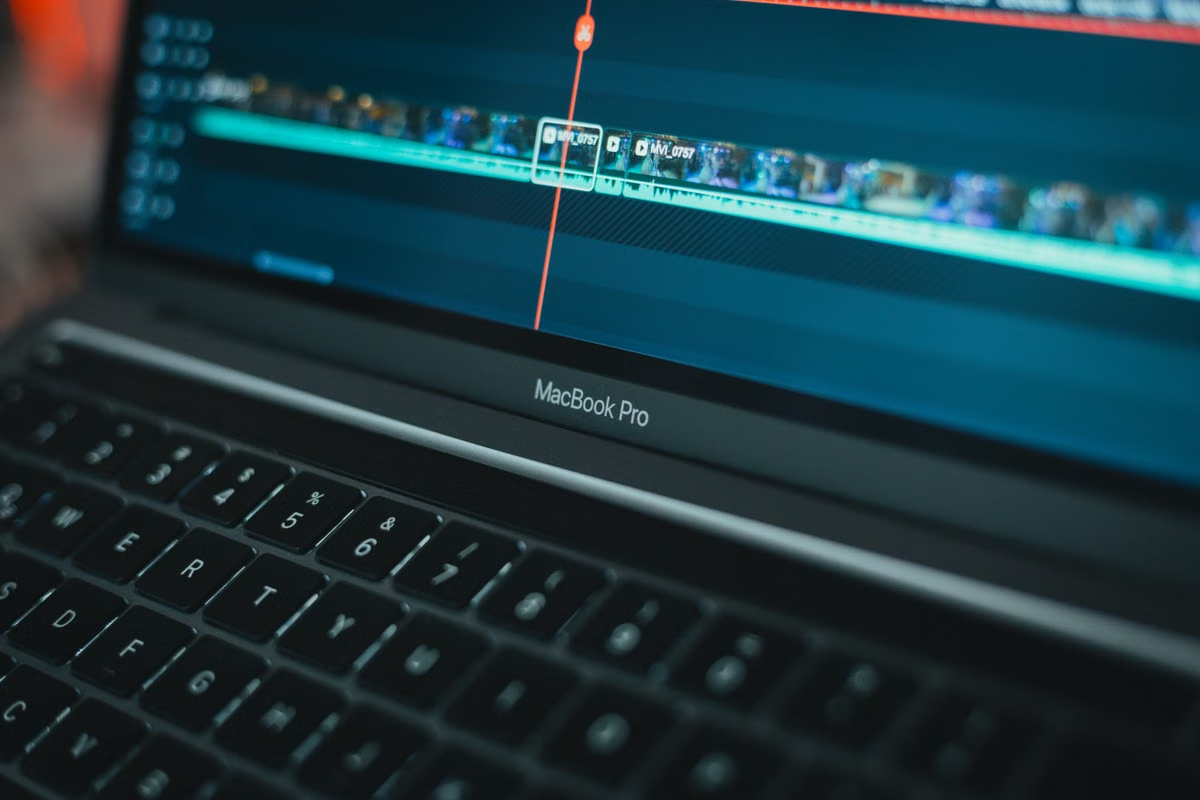
CapCut Mac 2026: How to Validate a Remote Mac Editing Environment?
The CapCut window opens, but nobody has confirmed that the team can finish and retrieve a publishable video.
Best choice: run a complete remote-Mac trial before adopting it; continue only if CapCut’s current Mac support is clear and your real footage passes import, timeline, export, and local playback checks.
This guide is for cross-border sellers preparing TikTok Shop product videos, content operators assessing a team workflow, and administrators who need evidence from a real task—not just a service description.
Start with support evidence, not an install assumption
CapCut Mac 2026 remote editing is a workflow to validate, not a compatibility claim. CapCut provides a desktop download page, but information shown there should not be treated as a Mac system requirement unless it explicitly applies to macOS. In particular, do not use Windows requirements to conclude that a remote Mac is supported.
Before installing, open the CapCut desktop editor page and look for current Mac-specific support details. If the page does not state them clearly, record that uncertainty and test the actual setup. Check the Mac’s installed operating-system version in System Settings, or use Apple’s instructions for finding the macOS version.
| Checkpoint | Evidence to record | Acceptance decision |
|---|---|---|
| macOS support | The wording on CapCut’s current desktop page, including whether it explicitly covers macOS | Proceed only with a clear support basis or a trial explicitly marked as unconfirmed |
| Installed environment | The macOS version, CapCut version, installation route, and any sign-in requirement | Record the exact values from the test Mac; do not substitute another operating system’s requirements |
| Account access | Whether the expected team account can sign in and reach the required project workflow | Stop and resolve access or account-policy questions before using production material |
Important: A visible app window proves only that the app launched. It does not prove that your team can import its files, edit a representative timeline, export a complete video, or retrieve that video successfully.
Sign-in is also part of the acceptance test. Record whether the team can use its intended account and whether any verification step blocks the workflow. CapCut’s official sign-in help explains its login process; follow the current instructions rather than sharing credentials informally.
The recorded support page and installed versions form the test baseline. If either changes, repeat the affected checks instead of treating an older pass as permanent proof.
Map the material handoff before the first edit
A remote editing test can fail before the timeline is involved. Source video may be on a local workstation, audio may arrive through a separate shared folder, and project files may be handed over in chat or email. Unless the team maps those paths, it can mistake a file-management problem for an editing problem.
Use footage the team is authorized to use. A small, representative project is enough to expose whether the handoff works; it should include the kinds of video, audio, and project files that the team actually expects to pass between people. Do not upload customer, creator, or supplier material unless the team has permission and the storage method is approved.
| Handoff option | What to verify | Typical operational risk |
|---|---|---|
| Upload from a local workstation | Which person uploads the files, which folder receives them, and how the operator confirms completion | Duplicate names or incomplete transfers can leave the editor working from the wrong source |
| Retrieve from team storage | Whether the remote Mac can access the approved location and whether the working copy is clearly identified | Permissions or inconsistent folder conventions can block the next operator |
| Copy the project and media together | Whether the project opens with its referenced assets available | A project file without its linked media may not reproduce the intended timeline |
Write down the source location, destination folder, file naming rule, and retrieval path. Keep the original source files unchanged during the trial. For each item, record its actual filename and file size; for video, also note the duration and the metadata your publishing workflow needs. These are observations from the tested files, not universal CapCut limits.
A simple handoff record can be plain text:
Project: <team project name>
Source folder: <approved source location>
Remote working folder: <exact destination>
Project file: <filename>
Video and audio files: <filenames>
Current editor: <person or role>
Export destination: <exact retrieval location>
The test is only reproducible if another operator can identify the same source, working copy, and current project without guessing.
If the trial requires a different connection method or a revised folder structure, record that change before editing. Otherwise, a later comparison will not reveal whether a result changed because of the Mac, the connection, or the new handoff process. Teams evaluating a US-based environment can also review the remote Mac setup and ordering details for Silicon Valley while planning a test; the service location does not replace checking the actual workflow.
Use the team’s real edit as the acceptance test
The first edit should resemble a routine TikTok Shop product-video task, not a showcase project designed to avoid difficult steps. Include the timeline actions the team expects to use: importing media, trimming, arranging clips, handling audio, and previewing the intended sequence. Do not infer editing capacity from a single successful launch or a short screen recording.
| Workload | Remote Mac trial | Keep the work local or revise the process when… |
|---|---|---|
| One short, repeatable product clip | Test the normal import, timeline, preview, and export path | Any required action cannot be completed reliably in the team’s actual connection setup |
| A project with several source assets or revisions | Test folder organization and confirm the editor can identify the approved versions | Transfers, naming, or version handoffs create uncertainty about which asset is current |
| A handoff between operators | Ask the next operator to locate the project and continue from the recorded state | The next person cannot identify the project file, media location, or latest approved edit |
| A deadline-sensitive batch | Test the complete workflow using a representative batch before committing production work | The trial reveals a bottleneck the team cannot accommodate or route around |
During the test, record whether each action completed, whether a remote-control adjustment was needed, and where the operator had to wait or retry. Do not label a timeline “smooth” or a workload “supported” unless the team has actual, repeatable observations to justify that description. The trial establishes suitability for the tested task, not for every resolution, project size, or editing pattern.
The connection itself is one of the variables. If the operator cannot make accurate timeline selections or judge playback comfortably, test an available alternative connection mode and record the result. Do not quietly change the connection midway and count the overall task as a single comparable test.
Verify the export on the destination device
An export is not accepted just because CapCut reports that it finished. The team needs to retrieve the file to the device or folder used for publishing and play that copy. CapCut’s export help describes its export workflow, but it does not establish how a particular remote Mac, project, and file-transfer route will behave together.
Capture the export’s actual filename, file size, duration, resolution, and frame-rate metadata when available. Compare them with the project’s intended delivery. These values belong in the test record; this guide does not prescribe a universal video specification. If playback is abnormal, repeat the check from the remote copy before deciding whether the issue is export or transfer related.
For a transfer where file integrity is in doubt, calculate a checksum on both copies:
shasum -a 256 "/path/to/exported-video.mp4"
Example output format:
<checksum value> /path/to/exported-video.mp4
Run the same command against the local and remote files. Matching checksums show that the two copies have identical contents; they do not prove that the video is suitable for publication. Then open the local copy in a player such as QuickTime Player and check the beginning, middle, and end for picture and sound. Apple’s QuickTime Player guide covers opening and playing media files.
If the copy is missing, cannot be opened, or differs from the remote version, keep the original export and record the failed route. Check the destination folder and repeat the transfer before exporting again. Re-exporting first can make it harder to determine whether the initial problem was a transfer interruption or an export problem.
Common questions before the trial is complete
Can CapCut Desktop be installed on a remote Mac?
Treat installation as an item to verify, not an assumed compatibility result. Check CapCut’s current desktop page for Mac-specific support information, then record the macOS version and the installation route actually used. If the page does not clearly state Mac requirements, do not infer them from Windows information. A successful launch is only the first check, not proof that editing and export work.
What should a remote Mac video-editing test include?
Use approved team footage and test the whole handoff: upload source media, confirm where files are stored, import them, perform the timeline actions the team needs, preview the result, export it, and retrieve the file. Record the app and macOS versions, connection method, file details, and any errors. This lets the team repeat the test when something changes.
How should a CapCut export be checked locally?
Copy the exported file to the folder or device used for publishing, then open that copied file rather than checking only the remote copy. Confirm that playback starts, that picture and sound match the edit, and that file metadata fits the intended delivery. If the transfer may have been interrupted, compare checksums for the remote and local copies before repeating the export.
Which TikTok Shop product videos are a good fit for remote editing?
Start with short, repeatable product-video tasks that the team can validate from source media through local playback. A remote workflow is a weaker fit when large or frequently changing assets are difficult to transfer, remote controls prevent accurate timeline work, or team members cannot agree on the current project version. Editing acceptance does not guarantee platform approval or publication.
Separate video acceptance from Seller Center review
A playable export is not the same thing as an accepted product listing. Before publication, compare the finished video with the current US TikTok Shop product-listing policy. Check that the content accurately presents the actual product and follows the policy requirements that apply to the listing. Verify the live policy rather than relying on a saved copy or a recollection from a previous campaign.
If the video includes promotional claims or material from a creator or supplier, review the relevant official promotional-content guidance and intellectual-property policy. The applicable rules depend on the content and rights involved. Editing in CapCut does not resolve those checks.
Keep two review records:
- Remote Mac acceptance: support information, versions, material handoff, timeline actions, export, and local playback.
- Platform publication review: listing content, applicable policy checks, Seller Center submission, and the resulting item status.
This separation prevents a common handoff error: treating a video that plays correctly as proof that a listing has passed platform checks. The official high-quality video and livestream guidance is another policy reference to consult when it applies to the planned content. None of these checks guarantees review approval, reach, or sales.
Choose the next workflow from the recorded result
Use the trial record—not a general promise about remote editing—to decide what happens next.
- Continue with remote editing when Mac support is established or explicitly treated as a trial, the team can locate the correct materials, required timeline actions work, and the exported copy plays from the publishing destination.
- Keep a split workflow when the remote Mac handles some editing steps but asset transfer, precise timeline work, or file retrieval remains unreliable. Keep the failing step local until it has a tested replacement.
- Do not move production work yet when Mac support is unclear, sign-in blocks the workflow, the next operator cannot identify the active project, or the exported file cannot be verified locally.
- Repeat the affected checks after changing the macOS version, CapCut version, connection method, account setup, or handoff location. Record what changed so the new outcome can be compared with the original trial.
For cross-time-zone teams, leave a handoff note with the project location, current version, export status, and next responsible role. A price comparison is meaningful only after the team knows which editing and handoff tasks the remote environment will actually cover. SFTPMAC’s Mac rental pricing information can help frame that cost comparison, but it cannot replace the task acceptance test.
A remote Mac may be a poor fit for work that requires a physical connection to local equipment or for sustained workloads that are better served by a dedicated machine the team controls. For a short trial, temporary campaign, or team validation of a macOS workflow, renting from SFTPMAC can avoid committing to hardware before the process is proven. Test one real project first; if asset transfer or export recovery still fails, retain local editing until the workflow changes.